
Gaming
Transform Your Apple TV Into A Retro Gaming Hub

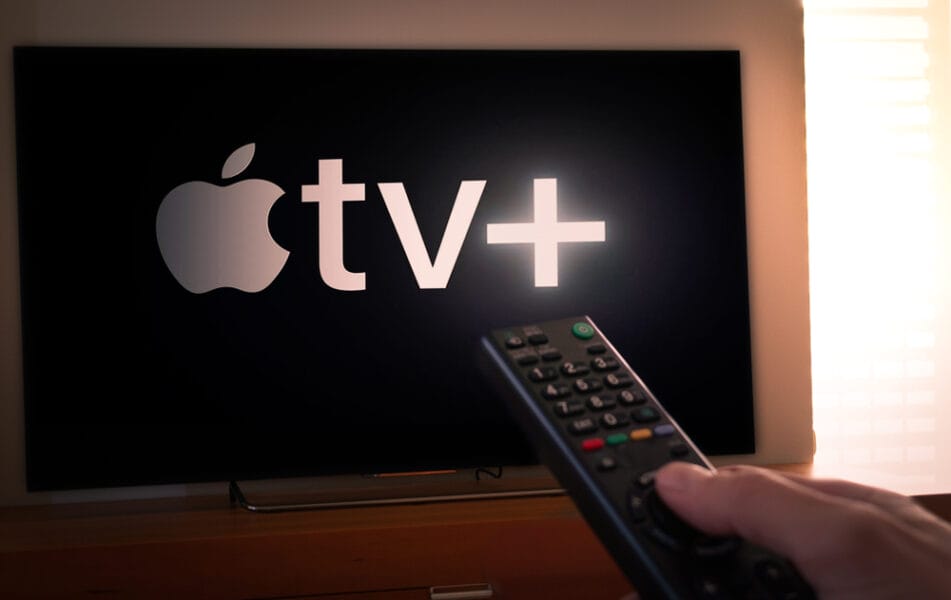
Your Apple TV is more than just a device to binge-watch your favorite shows; it can transform into an impressive gaming emulator, breathing life into nostalgic favorites and modern classics alike. Imagine diving into the pixelated worlds of your childhood or discovering retro gems you’ve never played—all in the comfort of your living room. Thanks to a helpful guide by HotshotTek, this is entirely possible. The step-by-step video provides everything you need to configure your Apple TV, ensuring that you get the best performance without breaking any legal boundaries.
Why Apple TV is Ideal for Gaming Emulation
When you think of gaming consoles, the Apple TV might not be the first thing that springs to mind. However, its robust hardware and seamless synergy with other Apple products make it a surprisingly strong contender for gaming. With high-definition support, your gaming visuals will be crisp and vibrant, making every jump and shoot feel more immersive. Plus, Apple TV’s compact design means it can fit neatly into any entertainment setup, eliminating the clutter of multiple consoles.
What’s more, the growing roster of compatible apps for emulating classic gaming systems allows you to dive into a vast library of retro titles. By centralizing your entertainment needs on the Apple TV, you save space and streamline access—no more fumbling around for various controllers or cables. With its intuitive interface and Bluetooth connectivity for modern gaming controllers, your Apple TV can truly be the heart of your gaming experience.
Essential Components for Your Gaming Setup
Ready to convert your Apple TV into a gaming hub? Here’s what you’ll need to get started on this exciting adventure:
– Apple TV: Opt for the latest model to take full advantage of performance capabilities and compatibility with various emulator software.
– Gaming Controller: Controllers like the PlayStation DualSense or Xbox Wireless Controller connect effortlessly via Bluetooth, providing a familiar gaming experience.
– Emulator Software: Programs such as Provenance and RetroArch are popular choices for emulating multiple gaming platforms.
– Optional Accessories: Consider investing in a Bluetooth keyboard for quicker navigation and a high-quality HDMI cable for better visuals.
While the Apple TV App Store doesn’t feature emulator apps directly, fear not! You’ll just need to sideload the software using a Mac and an Apple Developer account. Although it may sound technical, many resources simplify the process, making it manageable even for those who aren’t particularly tech-savvy.
Installing and Configuring the Emulator
Once you’ve successfully sideloaded the emulator software onto your device, follow these steps for a smooth setup:
1. Load ROM Files: Make sure to only use legally obtained game files (ROMs) and organize them into folders for easy navigation within the emulator interface.
2. Pair Your Controller: Go to the Apple TV’s Settings, select “Remotes and Devices,” and connect your controller through Bluetooth. Keeping your controller’s firmware up to date can help avoid connection hiccups.
Getting these settings right can dramatically enhance your gaming experience, so take the time to explore the emulator’s settings and customize them according to your preferences.
Enhancing Your Gaming Setup
Want to elevate your gaming experience? Consider these additions:
– HDMI Cable: A high-quality HDMI cable can significantly reduce input lag and enhance visual fidelity, making your games look even better.
– Cooling Pad: If you plan on long gaming sessions, a cooling pad can prevent your Apple TV from overheating, ensuring it stays performant for hours of gameplay.
– Additional Controllers: Bringing in extra controllers will make it easier for friends and family to join in on multiplayer fun.
These small improvements can vastly enhance both performance and enjoyment, creating a more immersive gaming atmosphere.
Optimizing Performance for Smooth Gameplay
Nobody enjoys lag during intense gaming moments. To keep things running smoothly, consider the following tips:
– Adjust Emulator Settings: Customizing resolution, frame rate, and audio settings can maximize your Apple TV’s capabilities.
– Close Background Apps: Freeing up system resources by shutting down unused apps will help your emulator run more efficiently.
– Stable Internet Connection: If you plan on downloading updates or playing online, a high-speed connection is crucial.
– Update Software: Regularly checking for updates on your emulator will help you access the latest performance improvements.
By taking these steps, you’ll set yourself up for smooth gameplay, minimizing disruptions during your gaming sessions.
Legal Considerations for Game Emulation
As thrilling as gaming can be, it’s essential to navigate these waters ethically:
– Only use ROMs for games you’ve legally purchased.
– Look for legal ROM options offered by developers, especially for older or discontinued titles.
Following these guidelines not only protects you legally but also maintains the integrity of the gaming community. Always prioritize acquiring game files from reputable and legal sources.
Unlocking Your Apple TV’s Full Potential
Transforming your Apple TV into a gaming emulator can be one of the most fulfilling projects you undertake. Mixing modern tech with cherished gaming memories, you can experience gaming like never before. With the right tools and tweaks, your Apple TV can provide both nostalgic joy and cutting-edge entertainment. By considering performance optimizations and staying on the right side of legal boundaries, you’ll enjoy a versatile gaming setup that keeps you entertained—whether alone or with family and friends. Dive in, explore, and see where this journey takes you!