





Phones
Unlock Your iPhone’s Potential: Speed Up Your Typing with These Simple Tips

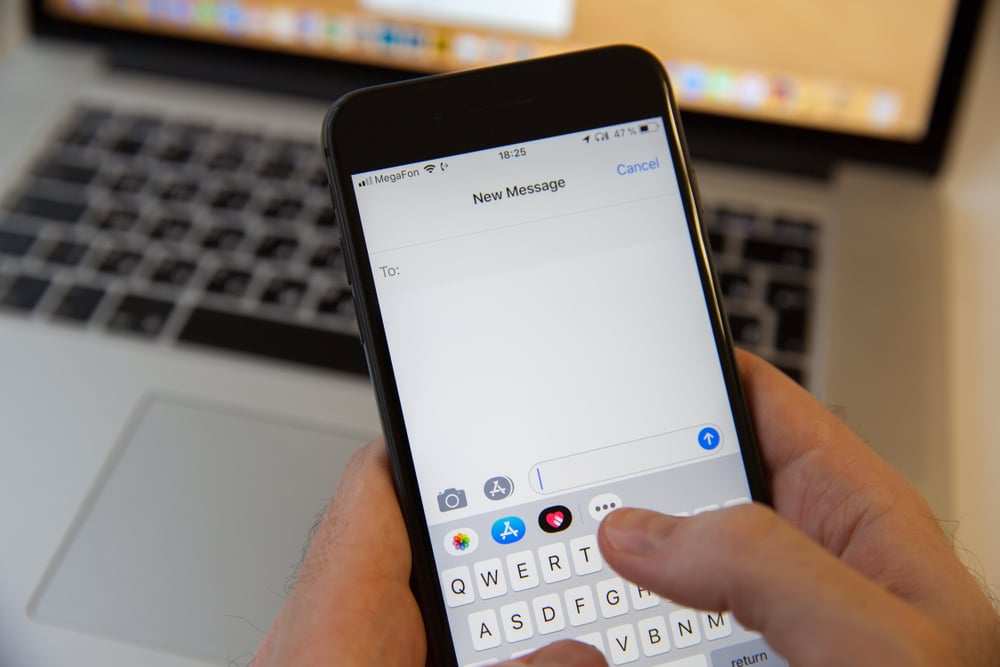
Typing on your iPhone can sometimes feel like a dance—smooth, efficient, and purposeful—but only when you’re equipped with the right techniques and features. Apple’s iOS offers a myriad of tools and customizations designed to help you not just type, but type better and faster. So if you’re looking to boost your productivity, enhance your typing comfort, or simply make your device more tailored to your needs, check out the valuable insights from Proper Honest Tech in the video below. These helpful tips are not just for tech aficionados; they’re for anyone who wants their typing experience to be less of a chore and more of a joy.
Master Text Editing and Navigation
Let’s be honest—effective text editing can make or break your typing speed. One outstanding feature on the iPhone is the trackpad functionality. If you’ve ever fumbled with cursor navigation while trying to correct a typo, you’re going to appreciate this one. Simply press and hold the spacebar, and voilà! Your keyboard morphs into a virtual trackpad, allowing you to move your cursor with surgical precision. It’s a game changer for tidying up your text and honing in on those pesky little errors.
For those juggling multiple tasks, text editing becomes even simpler. You can drag and drop text between apps effortlessly, so if you find yourself crafting an email and want to seamlessly snag a line from your Notes app, there’s no more back-and-forth motion that disrupts your flow. Plus, many apps like Notes and Mail come with user-friendly formatting tools like bullet points and bold text, helping you organize your content better. This can make your messages clearer and more engaging!
Unlock Keyboard Features for Faster Typing
Did you know that the iPhone’s keyboard has features designed to make your typing experience smoother? One standout option is swipe typing. Instead of tapping each key—yes, we all know how tedious that can be—you can just glide your finger across the keyboard. This technique can feel more natural and is especially advantageous during those marathon text sessions.
And if you want to make typing even more intuitive, haptic feedback could be your new best friend. By enabling this feature, you’ll feel a gentle vibration with each keypress, making you feel more connected to what you’re doing. Also, don’t forget you can personalize your keyboard layout. Whether you need support for two languages or prefer a one-handed mode for easier access, your iPhone can shape itself to fit your typing style. And for those who occasionally desire more flair, you can hold down specific keys to access hidden characters and symbols, making your communication feel rich and expressive.
Enhance Accessibility for Comfortable Typing
Apple really understands that people have different needs, and their accessibility features are here to make your typing comfortable, regardless of what challenges you may have. For example, if you find text too small, the Display Zoom feature enlarges everything—keyboard included—so it’s easier to read. The Zoom feature can help focus on specific parts of your screen, while Reachability pulls the top of your screen closer to your thumb, facilitating navigation on larger devices.
These adaptive tools aren’t just gimmicks; they genuinely aim to enhance your overall comfort and efficiency. By exploring these options, you’re empowering yourself to create a typing environment that not only meets your preferences but also adapts to your unique needs.
Streamline Your Workflow with Text Shortcuts
Let’s talk shortcuts—text shortcuts, that is. They are small but mighty tools that can tremendously cut down your typing time. By setting up text replacements, you can create shortcuts for phrases you often use. Imagine typing “omw” and having it magically expand into “on my way!” It’s a simple adjustment that can be particularly helpful for sending quick replies or repetitive messages.
Then there’s predictive text, which is your little assistant that suggests the next word or phrase as you type. This feature makes composing messages seamless and helps you sound more polished, even when you’re in a rush. And if you find yourself needing to jot down a lengthy thought, just tap the microphone icon for voice dictation—it’s surprisingly effective for multitasking or drafting longer pieces without the hassle of typing everything out.
Use Advanced Typing Tools
Your iPhone keyboard comes packed with advanced tools that go far beyond typical typing. Ever needed to do quick calculations but found yourself switching back and forth to the calculator app? Well, guess what? You can perform calculations right within your text fields. This feature can save you those annoying seconds when drafting messages or jotting down notes.
If autocorrect has been driving you mad, you have the option to reset your keyboard dictionary. This nifty reset can clear up any learned words that just aren’t working for you, restoring your keyboard to a more helpful state. Plus, when creating professional emails, you can easily insert clickable links into your text for improved readability, ensuring that your messages look sharp and are user-friendly.
Boost Productivity with Cross-Device Features
When you’re facing a significant task, like drafting a report, consider pairing your iPhone with a Bluetooth keyboard. This gameplay alteration transforms your device into a highly efficient portable workspace. Typing on a full-sized keyboard feels more comfortable, especially for those extended projects where your fingers might start to feel cramped after a while.
Explore Third-Party Keyboard Options
If you find that the standard iPhone keyboard isn’t quite meeting all your needs, don’t fret! There are plenty of third-party keyboard apps that can offer added bonuses. Popular options like Gboard, Grammarly, and SwiftKey bring enhanced autocorrect features, gesture typing, and customization options to the table.
With these apps, you can tailor your experience to align with your priorities, whether it’s speed, accuracy, or style. They allow for greater layout customization, enabling you to select colors and even fonts that reflect your personality. By trying out different keyboards, you may discover one that resonates perfectly with your vibe, making each message or document you create feel uniquely yours.
So, while your iPhone may already be a handy tool, these tips and features can elevate your typing experience to new heights. Embracing these functionalities could make a world of difference in how you communicate—leading to a more effective, enjoyable experience every time you type.