Phones
Unlock the Full Potential of Your New Apple Watch Series 10 with This Essential Guide

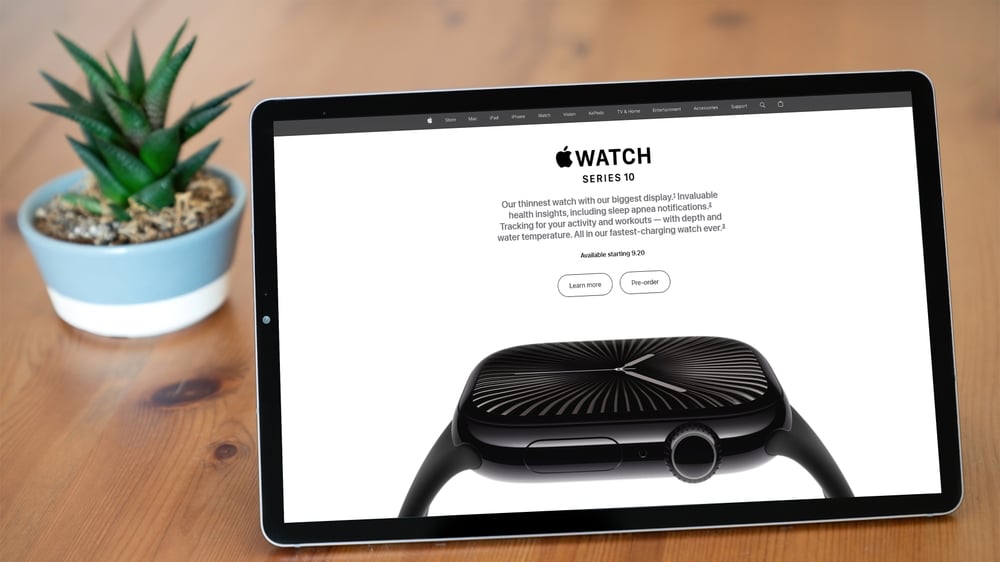
The Apple Watch Series 10 is more than just a smartwatch; it’s a powerful companion that seamlessly integrates cutting-edge technology into your everyday life. If you’re stepping into the world of smartwatches for the first time or looking to upgrade from an older model, it’s helpful to get familiar with how this device works—the setup process and key features can significantly enhance your experience. Fortunately, Howfinity has put together a great video that breaks everything down, helping you feel confident as you begin to use your new gadget.
Setting up your Apple Watch Series 10 is your first major step, and the good news is that it’s a breeze to get going. Pairing it with your iPhone via the dedicated Apple Watch app is crucial for syncing all your important data and customizing your device to fit your lifestyle. Here’s a quick breakdown of the steps you’ll take to get everything in working order:
– First, decide which wrist you prefer wearing your watch on. This might seem trivial, but it can impact comfort over time.
– Set a passcode to secure your watch; it’s like locking your front door, ensuring privacy and peace of mind.
– Don’t forget to adjust the font size. A simple tweak can make reading notifications and messages much easier, especially if you prefer a larger font for better visibility.
– Opt to transfer your health data from your iPhone. If you’ve been tracking your fitness journey, this option will keep all your records in one convenient spot.
– Finally, consider setting up optional features like sleep tracking. After all, monitoring your sleep can be a game-changer for your overall health.
Once you’re set up, mastering the basic navigation of your Apple Watch Series 10 is the next step. Apple designed the interface to be user-friendly, so you won’t feel overwhelmed. The digital crown is your best friend for scrolling through apps and notifications, while side buttons provide quick access to your most-used features. You even have the option to organize your apps in a grid or list format, depending on what feels right for you; choose what looks best and suits your style. If you want to give your fingers a break, just press and hold the digital crown to talk to Siri—it’s like having a personal assistant right on your wrist.
Now, let’s talk about the Control Center, your go-to hub for managing the essential settings of your Apple Watch Series 10. From the Control Center, you can:
– Easily toggle Wi-Fi and airplane mode for when you need connectivity or want to save some battery.
– Use the flashlight function when you’re rummaging around in the dark; it’s handy when you need that extra bit of light.
– Turn “Do Not Disturb” and “Theater Mode” on to keep interruptions at bay during important moments.
– Activate the water lock feature before diving into the pool, protecting your watch while you swim.
– Use silent mode to receive notifications discreetly without sound.
Getting comfortable with these Control Center functions will help you quickly adapt to your new device.
Your Apple Watch Series 10 isn’t just a gadget; it’s designed to enhance your daily routine and keep you organized. By double-clicking the digital crown, you’ll see a list of your recently used apps, making multitasking smooth as butter. Plus, thanks to the integrated App Store, you can manage apps directly from your wrist—install or uninstall them as your needs change, giving you total control over what’s on your watch.
One of the most delightful aspects of owning an Apple Watch is personalizing it to match your unique style. Through the Watch app on your iPhone, you can change watch faces and add complications—little widgets that give you quick access to your favorite apps. It’s like putting personal touches on your favorite outfit. Gesture controls like double-tapping for smart stack access elevate your interaction, ensuring your Apple Watch feels truly yours.
To keep everything running smoothly and ensure you’re getting the latest features and security improvements, regularly check for software updates in the Watch app on your iPhone. An easy habit to cultivate, keeping your watch updated guarantees you’ll enjoy a seamless and secure experience, just like keeping your car regularly serviced!
By following this guide, you’ve set the groundwork to navigate your Apple Watch Series 10 with ease and truly make it your own. Embrace this smart device, and get ready to enjoy the perfect blend of technology, convenience, and personal flair as it effortlessly integrates into your daily life.