



Phones
Samsung Galaxy S25: Essential One UI 7 Features You Can’t Miss

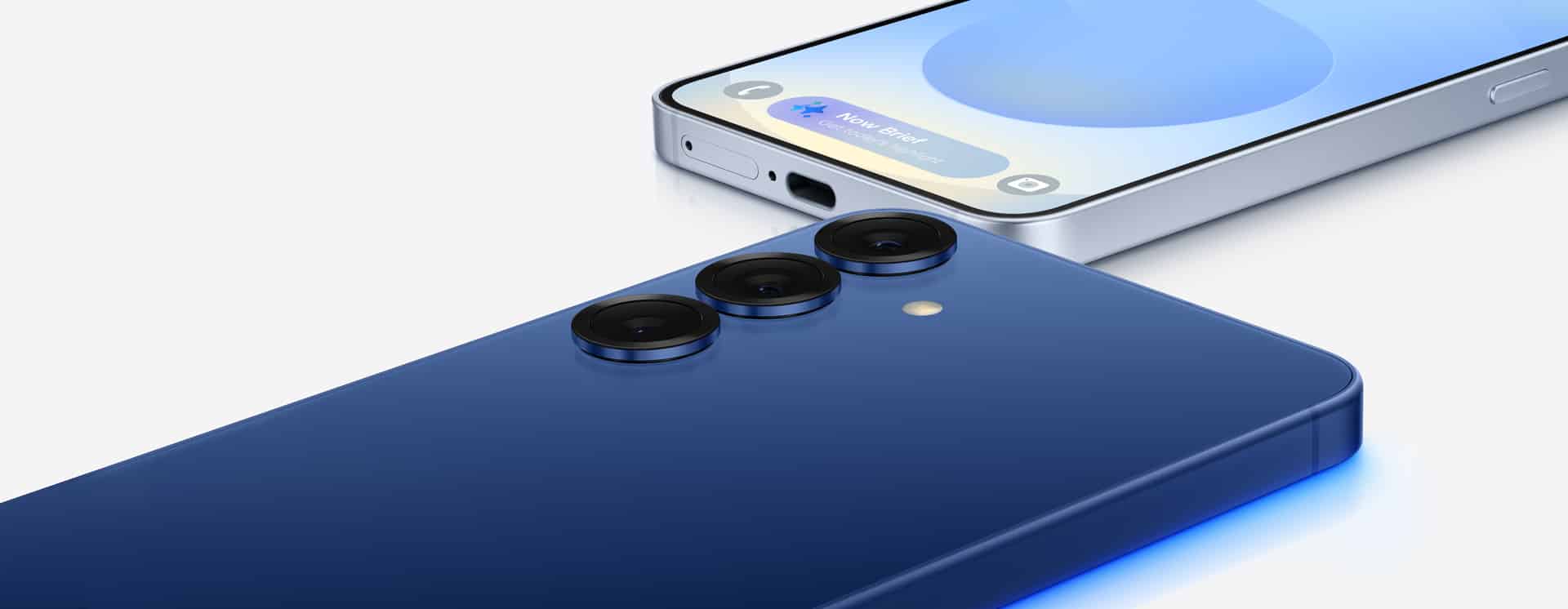
The Samsung Galaxy S25 Ultra, bolstered by the powerful One UI 7, presents an impressive suite of customization options that empower you to mold your home screen into a hub of both functionality and aesthetic appeal. What does this mean for you, the user? It means you can design an interface that not only looks good but also enhances your day-to-day productivity—without depending on those third-party apps that often complicate matters. The accompanying video from ThisIsE breaks it down step by step, illustrating how to optimize your layout with tools like Good Lock, widgets, and automation routines for a seamless experience.
Let’s talk about the philosophy behind a streamlined home screen. A well-organized home screen is not just a matter of looks; it’s crucial for a productive smartphone experience. Many of us can relate to the chaotic feeling that arises when our screens are overcrowded. That’s why a single-screen setup can be a game-changer, ensuring you have quick access to essential tools and information right at your fingertips. Here’s a simple layout you might want to consider:
- Google News: Place it on the left for immediate updates on current events and your personalized news. This little tweak can help you stay informed without having to scroll through multiple apps.
- App Library: Position it at the bottom, allowing for easy navigation and quick access to your most frequently used apps. It’s all about making your life easier, right?
- Widgets and Quick Actions: Dedicate the top section to essential widgets and shortcuts. By summarizing your most important tasks here, you can get into a good workflow without the clutter.
This organized strategy keeps needless distractions at bay, ensuring that every icon on your home screen is purposeful. Sticking with Samsung’s built-in features also provides a more cohesive user experience, reducing the hiccups often brought on by third-party applications.
When it comes to customization, Samsung’s Good Lock suite is like a treasure trove waiting to be explored. This powerful toolset allows you to tailor both the functionality and the visual aspects of your Galaxy S25 Ultra. A couple of noteworthy modules include:
Wonderland: Why not add some flair to your visual experience? Create animated wallpapers that not only make your home screen pop but also reflect your unique style.
Modes and Routines: Automate your life a bit more—think about setting your phone to enter power-saving mode when your battery dips below 20% or silencing notifications during your important work hours. It’s these little customizations that can significantly enhance your daily productivity.
But let’s not forget about the lock screen—your first interaction with your phone every time you pick it up. Instead of just a static image, think of your lock screen as a mini-dashboard filled with essential information. Some elements you might include are:
- Large Clock: This makes it easy to catch the time at a quick glance, especially helpful when you’re in a rush.
- Widgets: Why not throw in widgets for weather updates, a voice recorder for quick notes, or an international clock? Keeping these functionalities visible helps you stay organized and on track.
- Quick-Access Shortcuts: Consider shortcuts for the flashlight and camera; it’s all about accessing what you need quickly. This little setup gives your lock screen style and substance without feeling overstuffed.
As you consider your quick action panel, think about how a less cluttered interface can keep you focused. Prioritize simplicity by including three rows of essential toggles such as:
- Brightness and Volume Controls: Make it easy to adjust these quickly, eliminating distractions when you’re trying to concentrate on more important tasks.
- Wi-Fi and Bluetooth Toggles: Manage your connectivity with minimal hassle.
- Frequently Used Settings: A dedicated space for toggles like Do Not Disturb or Airplane Mode helps streamline functionality.
Think also about organizing your app library. A well-structured interface is a lifesaver—it not only keeps your home screen tidy but also saves you precious time. Consider these actions:
- Group Apps: Organize your apps into folders based on categories—be it productivity, travel, or entertainment. It does wonders for navigability.
- Resize Folders: Adjust folder sizes according to your preferences for a cleaner appearance. Clutter-free is the way to be, right?
Now, when it comes to productivity, widgets can be your best friend. They help keep important tasks front and center and can look quite stylish at the same time. Think about:
- Task Management Widgets: Tools like Superlist can help track your responsibilities and deadlines, acting as a gentle nudge to stay on top of things.
- Research Widgets: Widgets like Perplexity can provide quick insights and information at your fingertips.
- Stacked Widgets: Combine various widgets for system stats, your Galaxy Buds’ battery levels, and other frequently checked data. They provide a seamless experience in multitasking.
Samsung’s advanced tools and panels take usability to a whole new level. Consider these enhancements:
- Apps Panel: Gain quick access to your most-used apps without returning to the home screen—your shortcuts all in one place.
- Clipboard Manager: This feature simplifies text handling across different tasks, making your workflow smoother.
- Tools Panel: Access handy tools like a ruler or surface leveler whenever you need them. These practical applications make your Galaxy S25 Ultra not just smart but also sensible.
Navigating a large screen can sometimes feel cumbersome, but Samsung has included handy features to make it manageable. If you’re struggling with one-handed use, try:
- Gesture Navigation: Embrace gestures as a way to simplify navigating through your device with less reach.
- One-Handed Operation+: This tool allows you to access apps and quick actions with one hand effortlessly.
Finally, let’s talk about customizing your keyboard. With the Keys Cafe module from Good Lock, you can spruce up your typing experience:
- Add Visual Effects: Bring some fun into your typing session with custom sounds and animations—because who says typing has to be boring?
- Apply Themes: Match your keyboard’s style to your overall device setup for a sleek look that feels uniquely yours.
And, of course, Samsung doesn’t stop there. They’ve packed in features to enhance usability even further:
- Sleep Mode: Set a relaxing wallpaper and gentle settings to create a serene environment at bedtime, setting the stage for a better night’s sleep.
- Samsung DeX: Transform your Galaxy S25 Ultra into a desktop-like workstation with 4K resolution support, making it a powerhouse for those productivity tasks that require a larger screen.
In the end, whether you’re using your device for work or leisure, these tools and features position your Galaxy S25 Ultra as a versatile companion tailored to your lifestyle. So, take the plunge into the customization possibilities of One UI 7—you might be surprised at how much easier and fun your smartphone experience can become!