



Phones
Transform Your iPhone Experience With This Essential Home Screen Setup Guide

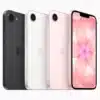
The iPhone 16e, running on iOS 18.4, introduces an impressive range of customization options that go beyond mere aesthetics. It empowers you to create a home screen that not only looks great but also fits seamlessly into your daily routine. You might be wondering how you can maximize your device’s potential to better serve your lifestyle. Well, you can create a highly efficient hub—or a personalized command center—by using tools like widgets, shortcuts, focus modes, and curated app placements. Let’s dive into how you can optimize your setup, ensuring it integrates smoothly into your life, whether you’re at work, working out, or just taking a moment to unwind.
Your home screen is like the front door to your iPhone experience, and if it’s cluttered, it can feel overwhelming. Adopting a minimalist design can significantly improve both the usability and visual appeal of your device. Start with a layout that showcases only the apps you most frequently use. This means larger icons and fewer words; hidden labels can add to that clean look. Pair this with a custom wallpaper that suits dark mode. Not only will this reduce eye strain, but it also adds a modern and polished touch to your screen.
Think about your daily habits. You want to easily access vital apps, right? A minimalist design lets you achieve just that. With adaptive layouts, you can make sure your essential apps and widgets are always within reach, simplifying navigation and making one-handed use feel effortless. This isn’t just about making your phone look nice; it’s about crafting a soothing interface that resonates with your unique style while boosting your productivity.
Widgets have also transformed the way we interact with our devices. They’re super handy for getting information at a glance without opening multiple applications. By strategically choosing which widgets to include on your home screen based on your daily needs, you can drastically improve functionality. For instance, if you’re health-conscious, an app like Ultrahuman can place your sleep score or step count right there on your screen. If you often juggle tasks, consider using Super List to keep your to-do lists and reminders visible without the need to scroll endlessly through apps.
But there’s more—widgets can dynamically change too! You can create custom widget stacks that smartly rotate to show you the most relevant updates, whether it’s the weather, calendar events, or reminders. And if you want all those updates in one streamlined view, the Vision Deck widget has got your back. By handpicking widgets, you elevate both productivity and accessibility, allowing you to effortlessly stay in the know.
Shortcuts and automations bring yet another layer of personalization to your iPhone experience. These features simplify tasks based on your specific needs. Ever find yourself fumbling to turn down the volume during a meeting? Customize shortcuts to adjust sound levels in a flash, or link the action button to bring up your favorite contacts for quick calls.
Imagine having Focus modes set up to automatically switch your home screen to a tailored setup for work or downtime. These smart adjustments create an environment that fosters concentration and minimizes distractions, making it easier to stay on task.
Don’t underestimate the power of the Control Center either. It’s your gateway to managing essential features with simplicity. Customizing this feature can boost your efficiency dramatically. Rearranging controls so that your most-used functions—like Wi-Fi, flashlight, and media controls—are easily accessible can make all the difference, especially when you’re busy. Imagine needing to adjust your settings quickly with one hand; that’s where a personalized Control Center shines. You can even add tools for ChatGPT voice assistance, making quick searches or getting responses a breeze right from your Control Center.
If you’re still not reaching your device’s full potential, consider third-party applications, which can really elevate your experience. Take Microsoft SwiftKey, for instance—this app enhances typing with predictive features that adapt to your unique writing style, speeding up your communication. Or maybe Blip, which simplifies file transfers when you want to share something quickly without jumping through hoops. There’s also SmartThings, an app that lets you control your home automation setup directly from your home screen, ensuring everything is at your fingertips.
Creating Focus modes is another excellent way to cut down on interruptions. Set up a “Reduced Interruptions” mode during work hours so unimportant alerts don’t distract you from what matters most. The ability to adjust notifications based on your environment brings a sense of calm during busy daily routines—little tweaks can mean a lot when it comes to keeping you organized and focused.
Ultimately, creating a customized home screen isn’t just about being functional; it’s also about channeling your personal style. Infuse your setup with custom icons, stylish wallpapers, and tailored widget themes that resonate with who you are. Opting for a dark mode interface with subtle color accents can enhance usability while projecting a sleek look. You might even consider using Mini Drawer widgets for quick access to your favorite entertainment options, making your device feel truly yours.
All of these elements come together to help you create not just a functional device but a personal extension of yourself. It’s all about achieving the right balance between aesthetics and usability, helping you to enhance your overall iPhone experience while keeping all of your most loved features at the forefront of your day-to-day. If you’re eager to refine your iPhone skills even further, check out a selection of articles and guides that can deepen your knowledge.
In the age of smartphones, your device should reflect your lifestyle, simplify your tasks, and help you stay connected—all while looking good doing it. So don’t hesitate; personalize your iPhone and watch it transform into the ultimate companion that fits perfectly into your life.