Phones
Transform Your iPhone and iPad Experience with These Easy Notification Customization Tips

With the release of iOS 18.1 and iPadOS 18.1, Apple has rolled out a suite of dynamic tools designed to help you take control of your notifications, allowing you to tailor your digital experience to what really matters in your life. Stepping up to the plate with their cutting-edge Apple Intelligence technology, these updates empower you to not only manage your alerts more effectively but also to find a sense of calm amidst the chaos of our always-connected world. Imagine a digital space where notifications are thoughtfully grouped into concise summaries, freeing you from the clutter that can easily overwhelm your screen.
A significant highlight of this update is the introduction of notification summaries, which cleverly organize your alerts into neat cards. This means that instead of being bombarded by multiple updates from your messaging apps or social media platforms, you get just one summary. Let’s paint a picture here: rather than seeing a flood of ten notifications from a single group chat, you now receive a single expandable notification. This streamlined approach allows you to tap into the details when you’re ready, without the constant pinging and buzzing that can disrupt your flow. To unlock this feature, simply head to Settings, select Notifications, and toggle the Summarize Notifications option. You can decide whether to apply this handy organization to all your apps or just to a select few that tend to bombard you with alerts. And if you’d prefer to revert back to individual notifications for certain apps, it’s as easy as a flick of a switch.
Now, let’s talk about the brains behind the operation—Apple Intelligence. This AI-powered system is constantly learning about your habits, analyzing how you interact with notifications, and helping to prioritize what’s important based on your unique usage patterns. If you regularly respond to messages from a certain app, those alerts will be front and center when you glance at your screen. Less critical notifications are intelligently tucked away into summaries, meaning you’re not distracted by a deluge of alerts throughout your busy day.
What’s more, Apple Intelligence excels in dynamically organizing notifications. Alerts are sorted by type or context—think email threads grouped together or alerts from the same app gathered in one place. This smart organization allows your brain to process information easily, efficiently helping you navigate your digital life without drowning in data. Although Apple Intelligence is still being fine-tuned, users can look forward to future updates that will broaden its functionalities, including support for more languages and enhanced prioritization options.
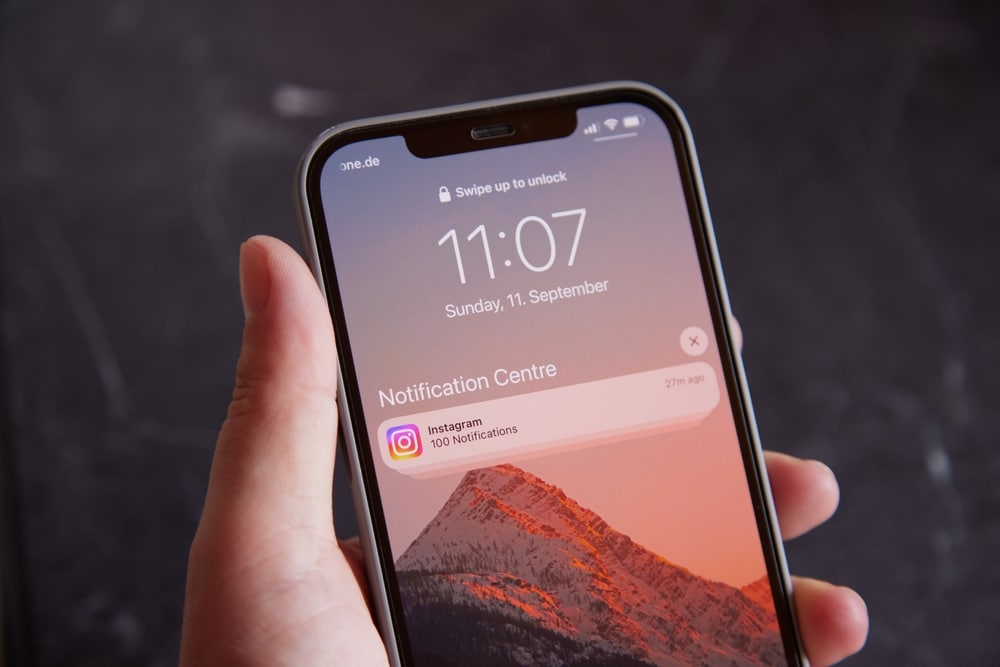
As you manage notifications on your iPhone or iPad, your lock screen and notification center are essential zones for interaction. Thanks to the improvements brought by iOS 18.1 and iPadOS 18.1, these areas seamlessly feature both summaries and individual notifications. On your lock screen, for example, those neatly arranged cards allow you to glance at your grouped alerts without needing to unlock your device—because let’s be honest, unlocking it every time just adds another layer of hassle. Genuinely get a feel for what’s important by simply tapping on a summary to reveal the details beneath.
This dual format caters to both ends of the spectrum—whether you like quick, concise updates or prefer diving deep into your notifications, you’re covered. By customizing your settings, you can strike that perfect balance between being in the loop and steering clear of unnecessary distractions.
Now, if you’re wondering how to make notification management fit seamlessly into your lifestyle, iOS 18.1 and iPadOS 18.1 have your back. The ability to customize notifications for each app means you can align your alerts closely with your personal priorities. Do you really want to be bombarded with updates from shopping apps while you’re trying to stay on top of vital messages from your friends? Simply hop into the Notifications section of Settings to tailor how, when, and if you get alerted. For example, perhaps you prefer to receive individual notifications for messaging apps to catch those crucial messages in real-time while allowing less important notifications, like those from news outlets, to condense into tidy summaries.
Accessibility is another vital aspect of these updates. Apple has not overlooked the power of language, as the latest updates greatly expand language support for notifications, adding a touch of inclusivity to their technology. This means that users from all around the globe can enjoy the benefits of notification grouping and prioritization, making it easier to manage alerts in a way that feels familiar and accessible.
The Settings app is your command center for notification management. Want to activate summaries for a specific app? Just go to that app’s notification settings and toggle the Summarize Notifications option. You can also tailor how alerts show up on your lock screen—whether it’s banners, badges, or subduing notifications altogether. The ease of these user-friendly controls ensures that you’ll always be connected to what matters most without feeling buried beneath a mountain of alerts.
Ultimately, these new features from iOS 18.1 and iPadOS 18.1 place you firmly in control of your digital environment. With Apple’s advanced AI technology at your service, managing notifications is smoother and more intuitive than ever before. Whether you lean towards seeing everything laid out in grouped summaries or prefer the granularity of individual alerts, rest easy knowing that these updates have your individual needs covered. As Apple continues refining notification management, pushing for more inclusive and responsive tools, it sets a new standard for creating a more harmonious and intelligent digital experience in the whirlwind of modern life.