







Phones
Simple Steps To Clear Your Safari History On iPhone And iPad

Effectively managing your browsing data in Safari is not just about decluttering your device; it’s a vital step in protecting your privacy and ensuring your device runs smoothly. Whether you want to clear your browsing history, remove pesky cookies, or tick away the cache that might be slowing you down, getting a handle on your data is essential. Let’s break it down in an accessible way, so you can take control without feeling overwhelmed.
Why Clear Your Browsing Data?
Think of your browsing data like your digital footprint—it tells stories about where you’ve been online and what you’ve done. Over time, as you surf the web, this data accumulates. Clearing it out can make your device not only run faster but also help safeguard your personal information from prying eyes. Plus, who doesn’t enjoy a fresh start every once in a while?
How to Clear All Browsing Data
Ready to streamline your Safari experience? Here’s how to wipe the slate clean:
1. Open the Settings app on your iPhone or iPad.
2. Scroll down and tap Safari.
3. Select “Clear History and Website Data”.
This simple act will erase your browsing history, cookies, and cached files across all your devices synced via iCloud. It’s like hitting a reset button, ensuring that you’re starting fresh. If you want to be more specific, Safari lets you delete data from various time frames—like the last hour, or today alone. You can even choose to close all open tabs for that utterly clean slate!
By frequently clearing your data, you not only enhance your device’s speed but also lower the risk of privacy breaches caused by cookies or lingering cache.
Clear Cookies and Cache Without Losing Your History
Sometimes you may want to keep your browsing history intact but free up space by eliminating cookies and cache that slow down your device. Here’s how to go about it:
1. Open Settings and navigate to Safari.
2. Scroll to the bottom and tap Advanced.
3. Select Website Data** to see what’s been stored from the sites you’ve visited.
4. Tap Remove All Website Data and confirm when prompted.
This method gives you a level of nuance; you’re able to clear specific parts of your browsing data while keeping your history. It can be a HUGE help in resolving pesky website issues or speeding up your browsing experience without sacrificing your past records.
Deleting Specific Websites from Your History
Is there a particular website you wish would vanish from your history? No problem! Safeguarding your privacy doesn’t mean you must eliminate everything. Just follow these steps:
1. Open the Safari app and tap the Bookmarks icon, which looks like an open book.
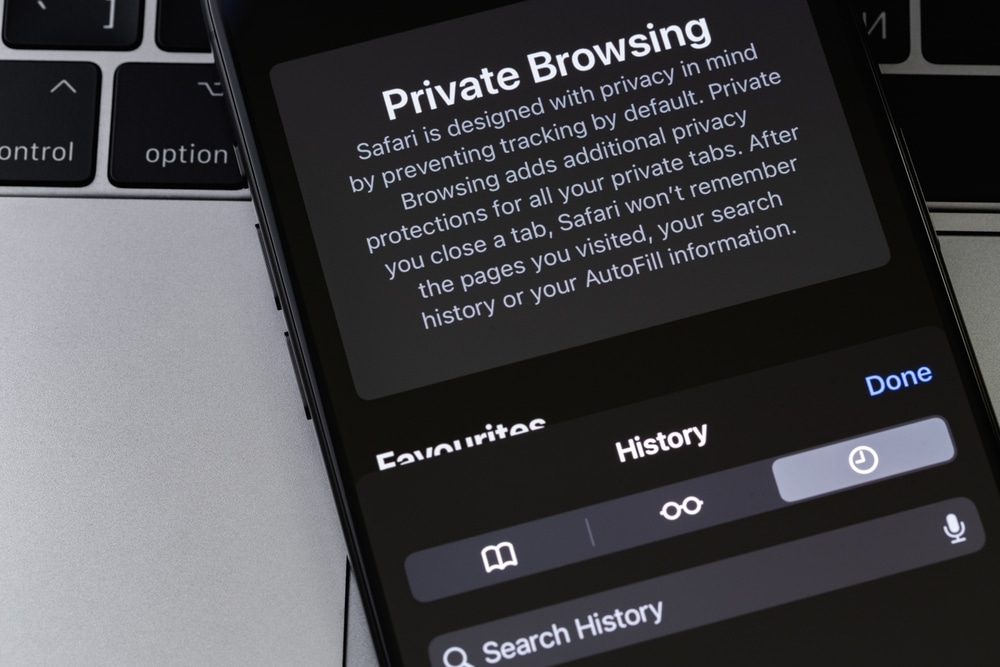
2. Switch to the History tab, identifiable by a clock icon.
3. Tap Edit in the bottom-right corner.
4. Locate the website you want to delete, tap the red minus icon next to it, and confirm you want to remove it.
This is perfect for when you might have a few embarrassing or inconvenient websites on your history but want to keep all the rest. A tidy browsing history lets you maintain a balance between useful and unwanted entries.
Customizing Safari Settings for Enhanced Functionality
Did you know that Safari comes with advanced settings for a more tailored experience? Adjusting these settings can significantly improve how you navigate the web. Here are a few features you might find useful:
– Enable or disable cookies: This allows you to control how much data websites store on your device, improving your privacy or functionality.
– Block pop-ups: Nobody enjoys intrusive ads; blocking them can lead to a much smoother interaction with web pages.
– Adjust privacy settings: Take control of how websites track your activity and reduce your online footprint.
If you use multiple Apple devices, iCloud syncing ensures a seamless experience. Just remember, clearing your data on one device will erase it from all synced devices. Knowing this can help you manage your preferences without any surprises.
By diving into these advanced features, you’re setting Safari up to work better for you, whether your priority is privacy, speed, or convenience.
Taking control of your Safari browser doesn’t need to feel daunting. With these straightforward steps, you can manage your browsing data in ways that fit your lifestyle and comfort level. Whether it’s for performance, peace of mind, or just a tidier digital space, you’ve got the tools to make your browsing experience much more enjoyable.
Feel empowered to take these actions, knowing you’re not just tidying up but also enhancing your privacy and the overall functionality of your device. If you ever feel stuck, remember there are plenty of resources available, including videos and tutorials, to guide you through the process. You’ve got this!