






Phones
Personalize Your Apple Vision Pro Home View for an Experience That Fits You Perfectly

Enhancing your digital workspace on the Apple Vision Pro is not just about functionality; it’s about creating a personalized experience. With the introduction of Vision OS 26, Apple has equipped users with intuitive features that streamline navigation and improve usability. By customizing the Home View, you can cultivate an organized space that aligns with your daily tasks and preferences.
Accessing the Home View Effortlessly
The Home View acts as the core interface of your Apple Vision Pro, and getting there is straightforward. You have two primary access methods:
Utilizing the Digital Crown
The side-mounted digital crown offers a tactile way to reach the Home View with just a press or slight rotation. This precise control makes navigation quick and efficient.
Gesture-Based Navigation
If you prefer a hands-free experience, utilize gestures like pinching or swiping. This functionality leverages the Vision Pro’s advanced motion tracking technology, ensuring your interactions feel natural.
Tailoring Your App Layout
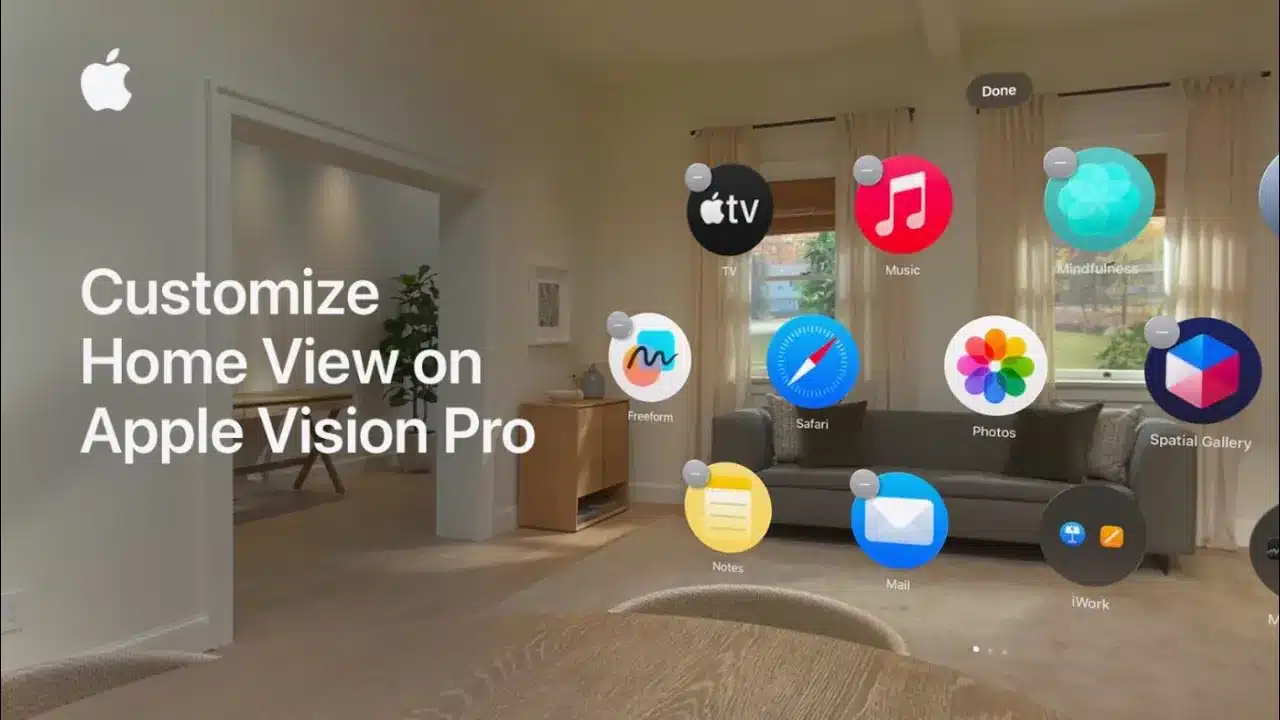
Once inside the Home View, you have the freedom to adjust the app arrangement according to your workflow. This customization allows for quick access to your most-used tools.
Rearranging Apps
Employ simple drag-and-drop gestures to reposition apps as needed. Placing key productivity applications like calendars and task managers in easy-to-reach spots ensures that you’re never far from the tools you require.
Adjusting Zoom Levels
The option to pinch-to-zoom allows you to expand or minimize your workspace, catering to your visual comfort. Whether you enjoy a spacious layout or prefer a compact view, this feature provides flexibility.
Organizing with Folders
To further refine your Home View, consider grouping apps into folders. This approach significantly reduces clutter and promotes an efficient workspace.
Creating Folders
Simply drag one app onto another to create a folder instantly. This intuitive action lets you categorize similar applications, making navigation smoother.
Renaming Folders
After a folder is formed, you can rename it using various methods:
- Virtual Keyboard: Input the name directly using the on-screen keyboard.
- Magic Keyboard: Connect a physical keyboard for rapid entry.
- Dictation: Use voice commands for a hands-free experience.
Organized folders not only simplify navigation but also keep your workspace tidy.
Enhanced Control Over Your Apps
Improving your Home View involves more than just rearranging—it’s about managing your apps as well.
Rearranging Apps
To place an app on a different page, drag it to the edge of the screen. This feature facilitates categorizing apps according to their function or how often you use them.
Deleting Unused Apps
If an app no longer serves a purpose, you can easily remove it. Select the app, choose the delete option, and confirm your action. This task declutters your digital space, making it more user-friendly.
Finalizing Your Custom Layout
Once you have made all desired changes, saving your layout is crucial. Simply tap the “Done” button to secure your settings. This step ensures that your customized Home View is readily available for your next session, providing a consistent experience tailored to your tastes.
Elevating Your Digital Workspace
Customizing the Home View on the Apple Vision Pro with Vision OS 26 is a fantastic way to enhance your digital workspace. By utilizing the various features—such as intuitive navigation, app organization, and folder management—you can create an environment that perfectly suits your preferences. Whether aiming for enhanced productivity or simply a more aesthetically pleasing interface, the tools at your disposal empower you to design a workspace that is both functional and enjoyable.