Phones
Mastering Your Samsung: A Step-by-Step Guide to Safely Factory Reset Your Phone

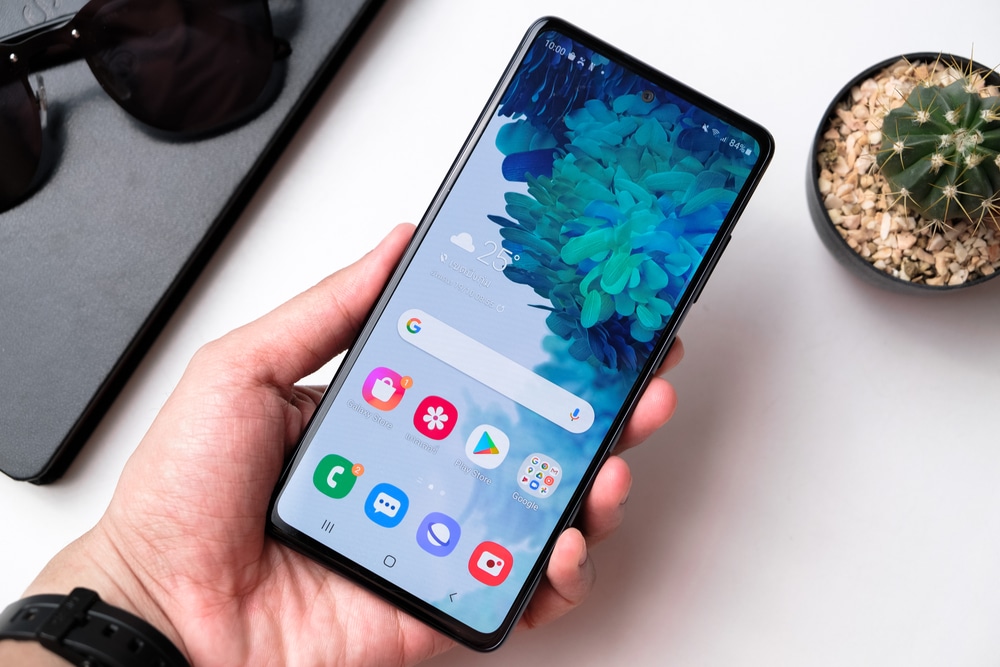
Executing a factory reset on your Samsung smartphone can feel like a daunting task, but it’s a hassle-free way to clear out all your data and restore your device to its original factory state. Whether you’re wrestling with a phone that’s been sluggish lately or are gearing up to pass it on to someone else, knowing how to effectively carry out a factory reset can make a world of difference.
Factory resetting can feel like giving your device a fresh start, erasing the accumulated clutter that might be dragging down its performance, or safeguarding your personal information. In a world where we rely heavily on our smartphones for everything from banking to social connectivity, being aware of when and how to reset is crucial.
Why You Might Consider a Factory Reset
There are several scenarios that might prompt you to consider a factory reset on your Samsung device:
– Performance Issues: If your phone begins to lag, freeze, or display persistent error messages, a factory reset could reinvigorate its performance. It eliminates software glitches and clears out corrupted files that weigh down your device’s capabilities.
– Selling or Passing On: Thinking of selling or donating your phone? Performing a factory reset is essential. Not only does it wipe your data clean, but it also ensures that the new user won’t stumble upon any of your private information—like messages, photos, or sensitive documents.
– Privacy Concerns: In today’s digital age, privacy is paramount. A factory reset effectively clears your personal details, allowing you peace of mind when moving your device to a new owner.
A factory reset often resolves problems caused by system bugs, giving your device a new lease on life. It’s like giving your digital companion a clean slate to work from.
Don’t Skip the Backup!
Before diving headfirst into a factory reset, it’s critical to back up all your important data. We’ve all experienced that sinking feeling of losing precious photos or important messages. Thankfully, there are several easy ways to back up your information—Samsung Cloud and Google Drive are two solid options.
Here’s how to safeguard your data:
1. Go to your phone’s Settings.
2. Tap on Accounts and Backup.
3. Choose your preferred backup service (either Samsung Cloud or Google Drive).
4. Simply follow the on-screen prompts to ensure everything important is stored safely.
By taking a few minutes to back up your data, you’ll be able to breathe easy, knowing your favorite memories and crucial documents won’t vanish into cyberspace.
How to Factory Reset Your Samsung Phone
Now that you have everything backed up, it’s time to reset your device. Here’s a simple step-by-step guide to help you through the process:
1. Open the Settings menu on your Samsung phone.
2. Tap on Accounts and Backup.
3. Select General Management.
4. Find the Reset option.
5. Choose Factory Data Reset to wipe all data and return your phone to its original settings.
Should your device be linked to a Samsung account, you’ll be prompted to confirm your identity via email. This is a security feature designed to ensure your device is safeguarded from unauthorized resets. Keep an eye out for a confirmation email from Samsung and follow the instructions included to complete the reset.
Rebuilding Your Phone After the Reset
Once the factory reset is complete, your phone will restart and greet you with the initial setup screen. This is where the magic happens—you’ll have the chance to restore any data you backed up earlier. Just follow the prompts, and soon enough, your device will feel like home again, complete with all your important contacts and cherished memories.
In conclusion, while a factory reset may seem like a drastic move, it can be a powerful tool in enhancing your Samsung smartphone experience. Whether it’s troubleshooting, upgrading to a new owner, or even just simplifying your phone’s software, knowing how to efficiently perform a factory reset will keep you in control of your digital life. You’ve got this!