



Gadgets
Master the Quick Guide to Effortlessly Updating Your AirPods Firmware

To make the most of your AirPods, whether you have the standard model, AirPods Pro, or the AirPods Max, keeping them up-to-date is crucial. Regular firmware updates ensure that you benefit from improved performance, enhanced features, and security patches. While Apple designs these updates to occur automatically in the background, it’s handy to understand how they work so you can troubleshoot any issues and confirm that your beloved earbuds are operating on the latest software. Recently, Apple has made strides in enhancing its support materials, simplifying the process for updating AirPods firmware for users just like you.
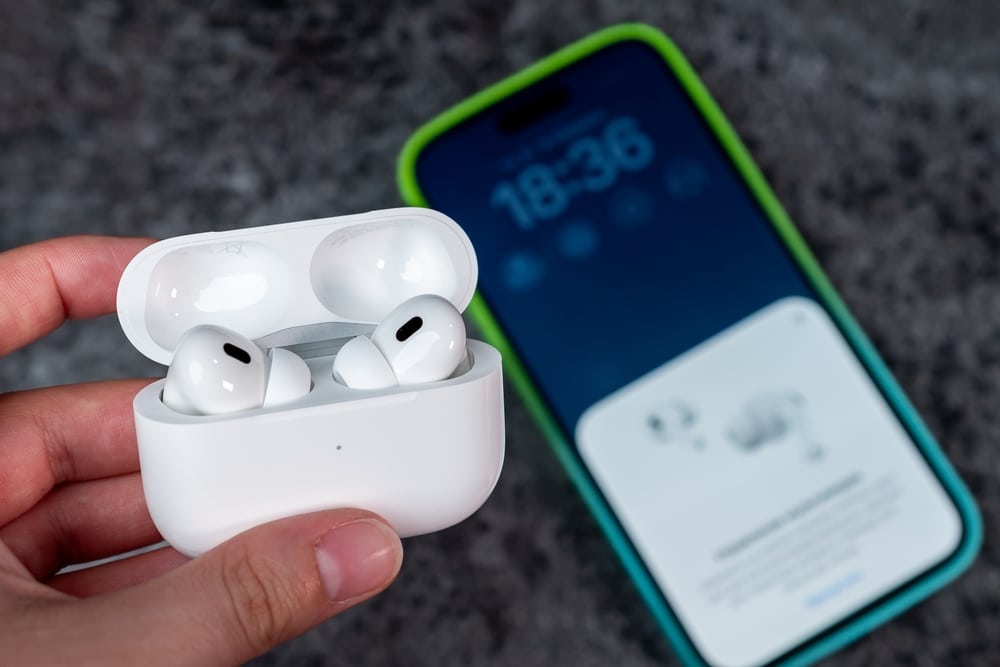
Updating your AirPods firmware isn’t as complicated as it might seem. In fact, you can tackle it in just a few steps. First, make sure your AirPods are within Bluetooth range of an internet-connected device, like your iPhone, iPad, or Mac. It’s as simple as putting your AirPods in their case, closing the lid, and then plugging the case into a power outlet using the appropriate charging cable or setting it on a wireless charging pad—if you have one. Patience is key here: wait at least 30 minutes to give your AirPods time to do their thing. After the wait, pop the lid open and check the firmware version in your device’s settings. This will assure you that you’ve successfully completed the update.
Here’s a straightforward way to remember the steps:
1. Place your AirPods in their charging case and close the lid.
2. Plug the case into a power source.
3. Keep your AirPods close to a Wi-Fi-connected device.
4. Wait for at least 30 minutes.
5. Check the firmware version in your device’s settings.
Now, let’s talk about troubleshooting. If you find that your AirPods aren’t updating despite following the steps, don’t panic—resetting them might just do the trick. Go to your Bluetooth settings, select your AirPods from the list of paired devices, and tap “Forget This Device.” Then, press and hold the small setup button that’s located on the back of the charging case until the status light flashes amber and then white. This indicates a reset. Go ahead and reconnect to your device and try the update process again. It’s like giving your AirPods a fresh start!
While the update process is generally similar across all AirPods models, there are minor differences to note. For instance, if you have AirPods Max, ensure that they are connected to a power source using the Lightning cable during the update process—this is crucial. In contrast, AirPods or AirPods Pro can update wirelessly as long as they’re sitting snugly in their charging case. Following these specific steps will set you up for success, allowing you to enjoy the latest enhancements and features your AirPods have to offer.
It’s also important to understand the operational limitations. Unlike software updates for iPhones or iPads, AirPods firmware updates lack manual controls. You can’t turn the process off or speed it up; updates are done automatically when the right conditions are met—meaning patience is sometimes required. This automatic approach ensures that your AirPods are consistently equipped with the latest features and fixes, but it can occasionally lead to frustration if you’re expecting immediate results. Understanding these constraints can help you manage your expectations and reduce any potential stress during the updating process.
For further assistance, you can check out Apple’s dedicated support page, where a wealth of resources is available, including detailed instructions and troubleshooting advice on managing AirPods firmware updates. This page provides a step-by-step guide for executing updates and solutions for the occasional hiccup. You can also verify your AirPods’ firmware version by looking into the Bluetooth settings on your device, which is a great way to ensure they’re up to date and working optimally. Simply staying informed and following Apple’s official guidelines will empower you to effectively manage your AirPods firmware updates, leading to a smoother and more enjoyable listening experience.
Whether you’re a new AirPods user or someone who’s been enjoying them for a while, understanding the update process and troubleshooting tips can save you time and prevent hassle down the road.
– Don’t hesitate to consult Apple’s support page for thorough guidance and troubleshooting help.
– Always check your AirPods’ firmware version in your connected device’s Bluetooth settings to stay in the loop.
– Keeping yourself updated on the process will warm you up to a seamless listening experience.
By staying on top of these guidelines and leveraging the abundant resources available, you’ll always have fully functional AirPods, AirPods Pro, or AirPods Max. Whether you’re tackling an issue or confirming an update, Apple’s enhanced support ensures that maintaining your beloved earbuds is straightforward and manageable. With automatic updates and effortless resetting instructions, managing your AirPods no longer feels complicated. Enjoy the convenience and premium quality of your AirPods to the fullest!