







Phones
Get Your iPhone Ready for the iOS 26.1 Update with These Simple Tips

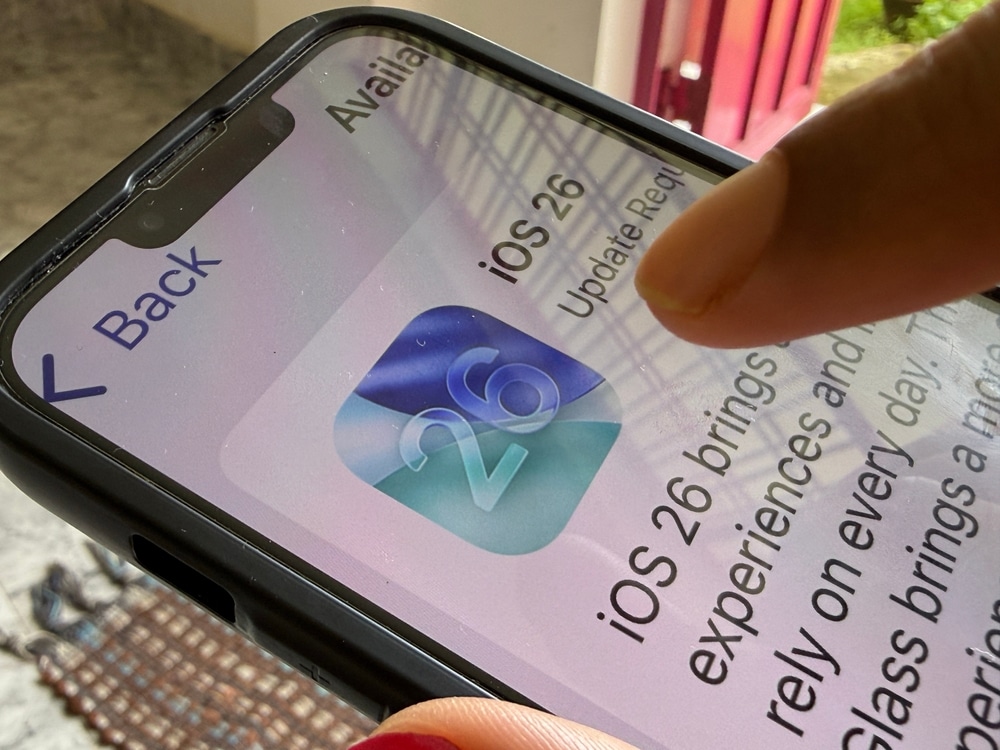
The much-anticipated release of the iOS 26.1 update is scheduled for November 3rd, 2025, at 10:00 a.m. Pacific Time. To ensure your upgrade process goes off without a hitch, it’s crucial to prepare your device ahead of time. From checking compatibility to safeguarding essential data, these preparatory steps can help you sidestep common pitfalls and make the most of the new features that iOS 26.1 introduces.
What to Know About the iOS 26.1 Update
The rollout of iOS 26.1 will commence on November 3rd, accessible for devices currently running iOS 26. To clarify, older models—specifically those older than the iPhone 11—will not be eligible for the update. Mark your calendars to begin checking for the update promptly at 10:00 a.m. Pacific Time.
This update is expected to bring numerous enhancements, including bug fixes, performance boosts, and additional features. To fully benefit from these upgrades, preparing your device beforehand is essential.
Step 1: Check Device Compatibility
Before diving into the update process, first confirm that your device is compatible with iOS 26.1. If your device is currently running iOS 26, you are likely eligible for the update—though older models like the iPhone 10 and earlier will not be included. Additionally, ensure that your device is operating on the latest version of iOS 26 to minimize the risk of installation issues.
To check compatibility, follow these steps:
- Navigate to Settings > General > About to view your current iOS version.
- Consult Apple’s official website for a detailed list of supported devices.
Step 2: Free Up Storage Space
The iOS 26.1 update typically requires around 8 GB of storage, but having at least 16 GB free is recommended for optimal installation. Insufficient storage can cause errors or delays during the update process, so proactively clearing space is vital.
Here are effective strategies to free up storage:
- Delete Unused Apps: Identify and remove apps that you no longer use.
- Clear Media Files: Move old photos, videos, or large files to external storage or the cloud.
- Offload Apps: Temporarily remove apps while keeping their data intact for future use.
Step 3: Check Battery Level
Having at least 50% battery life before starting the update is crucial to preventing interruptions. If your device runs out of power during the update, it could lead to incomplete installations and errors. While charging during the update isn’t recommended due to the risk of overheating, ensure that your device is well-charged beforehand.
For added reliability, connect your device to power during the update to safeguard against unexpected shutdowns if the installation takes longer than anticipated.
Step 4: Back Up Your Data
Before proceeding, ensure that your data is safely backed up. Two reliable backup methods are:
- iCloud Backup: Use iCloud for a wireless backup. Make certain you have ample iCloud storage available before initiating this process.
- Computer Backup: Connect your iPhone or iPad to your computer and create a comprehensive backup using Finder (for macOS) or iTunes (for Windows).
Preparing a backup helps ensure that no important files or settings are lost during the update procedure.
Step 5: Manage Beta Software
If you’ve been testing the beta version of iOS 26.1, it’s crucial to disable beta updates after installing the Release Candidate (RC) version, which is essentially the same as the public release. Turning off beta updates will protect your device from receiving future beta builds unnecessarily.
To disable these updates:
- Go to Settings > General > Software Update.
- Select Beta Updates and switch off the option.
What’s New in iOS 26.1?
This latest update is set to include a host of enhancements aimed at optimizing your device’s performance and functionality. Some key introductions are:
- Bug Fixes: Addresses known issues from previous versions to improve stability.
- Performance Optimizations: Enhances overall speed and responsiveness of the device.
- New Features: Introduces various tools and functionalities designed to enrich the user experience.
Although battery life should remain comparable to iOS 26, the enhancements make this update particularly worthwhile, especially if you’ve been facing past performance concerns.
Final Checklist Before Updating
To ensure your transition to iOS 26.1 is smooth, revisit this checklist before initiating the update:
- Verify your device is compatible with iOS 26.1.
- Ensure at least 16 GB of free storage is available for the installation.
- Charge your device to a minimum of 50% battery life.
- Backup your crucial data using either iCloud or a computer.
- Disable beta updates if you’ve previously utilized the beta version.
Why Preparation Matters
Upgrading to iOS 26.1 offers significant advantages such as enhanced performance, increased stability, and a slew of new features. However, thorough preparation is essential to avoid common challenges like installation errors, lack of storage, or potential data loss. By adhering to these steps, you position yourself for a seamless update, resulting in a hassle-free experience. Take the time to prepare adequately and relish the improved functionality and performance that iOS 26.1 has in store.