



Phones
5 Clever Tips to Navigate iOS 26 Like a Pro

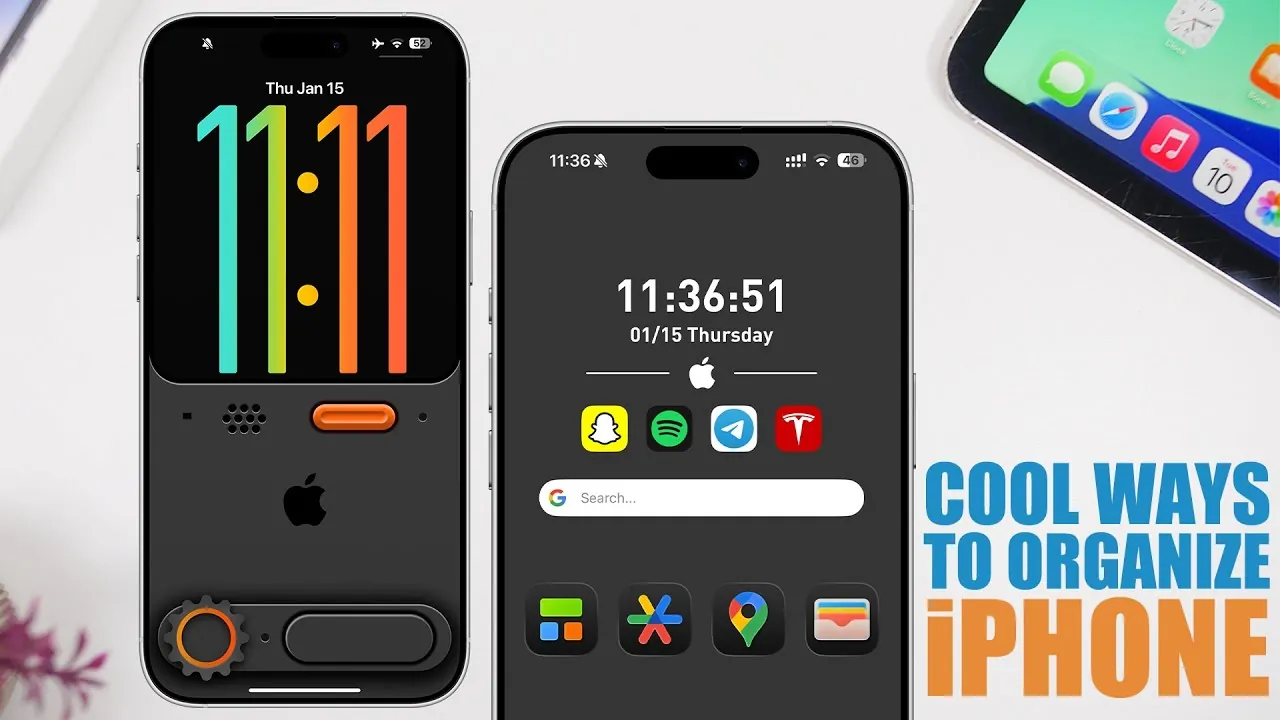
iOS 26 brings a fresh and innovative way to organize your iPhone, enhancing both functionality and style. The new update offers sophisticated customization options that allow you to create an engaging and visually appealing home screen. Whether your goal is a clean, minimalist design or an organized, app-focused layout, these five strategies will elevate your iPhone experience. Check out the accompanying video from iReviews for deeper insights into maximizing your phone’s layout.
1. Utilize Folders to Streamline Your Screen
Grouping applications into folders remains an efficient method to declutter your home screen. With iOS 26, you have enhanced customization capabilities that can make your folders not only practical but visually appealing, too.
– Organize apps into intuitive categories such as social media, productivity, or entertainment for seamless access.
– Combine folders with complementary widgets. For instance, a fitness folder can feature a step tracker widget, while a productivity folder might include a calendar widget.
– Activate dark mode to create a sophisticated, modern appearance that unites your folders and widgets effectively.
This method not only minimizes clutter but also significantly improves navigation, letting you concentrate on what truly matters.
2. Embrace a Minimalist Design
If clarity and simplicity are your priorities, a minimalist layout is a wise choice. iOS 26 offers the tools to achieve this clean look without losing functionality.
– Arrange apps against wallpapers that offer subtle grids or designs for an organized feel.
– Eliminate app labels to enhance the clean aesthetic and customize icon colors to fit your selected theme, ensuring a visually coherent layout.
– Position widgets on a side panel to keep the main screen less cluttered while retaining essential information at your fingertips.
This style reduces visual distractions, enabling you to focus on tasks while enjoying a tranquil digital environment.
3. Create a Unified Visual Theme
A cohesive theme can significantly enhance your iPhone’s aesthetic, and iOS 26 simplifies this with dynamic wallpaper options. These wallpapers can adapt to various styles, whether you favor nature, modernity, or vibrant designs.
– Align app icons and widgets with your wallpaper choice for a cohesive look. For example, a weather widget can blend beautifully into a nature-themed background.
– Try monochrome or gradient designs for a sleek, professional vibe that remains both elegant and functional.
Coordinating wallpapers with customized elements can result in a carefully designed, visually appealing home screen.
4. Organize with Split Wallpapers
One of the standout features in iOS 26 is the split wallpaper option, enabling you to divide your screen for apps and widgets. This innovative approach not only organizes effectively but also adds a unique visual touch to your home screen.
– Use the upper section for widgets like reminders, weather updates, or news, while the lower segment can showcase frequently accessed apps.
– Pair dark mode with larger icons to boost visibility and create a bold yet functional design.
This layout is especially useful for those wanting to merge practicality with a personalized touch, allowing quick access to information.
5. Simplify with Focus Mode
Looking to cut down on distractions? iOS 26 includes a “Focus Mode” that simplifies your home screen by showcasing only essential apps, fostering an environment conducive to productivity.
– Tailor the home screen to feature the apps and widgets you actually use, like messaging, calendar, and weather, ensuring a distraction-reduced experience.
– Rearrange app order and widget placements according to your habits for a more intentional approach to using your device.
This minimalist setup supports the growing trend of digital well-being, encouraging more mindful device engagement.
Enhancing Your iPhone Journey
Explore more guides on the features of iOS 26 from our extensive array of articles.